
Home/Connected systems/Cloudbeds integration
Connect Cloudbeds PMS with Dharma Operations Platform (OPS) to keep property information and operational updates aligned. This guide explains how to get started, connect your Cloudbeds account, understand how the integration works, and manage the connection.

Getting started
Dharma OPS accounts are set up through our sales team. To get started, book a call with our team or visit our Contact Us page.
When contacting us, mention that you found Dharma OPS through the Cloudbeds Marketplace. Our team will guide you through the onboarding process and help you get started.
Setup
This guide walks you through connecting your Cloudbeds account to the Dharma Operations Platform. The whole process takes about five minutes.
Access to Dharma OPS
You can log in to Dharma OPS and access Company Settings.
Cloudbeds login credentials
You have the username and password for your Cloudbeds account.
Authorization permissions
Your Cloudbeds account has permission to authorize third-party applications.
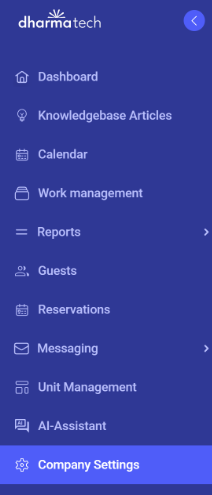
Log in to the Dharma Operations Platform. From the left-hand navigation menu, click Company Settings.
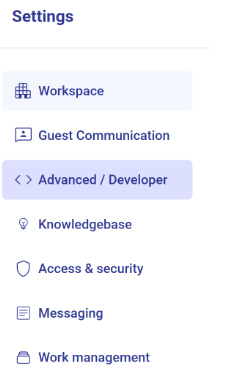
Once Company Settings opens, select Advanced Developer.
Inside Advanced Developer, you will see a set of tabs. Select the PMS tab to access the property management system integration settings.
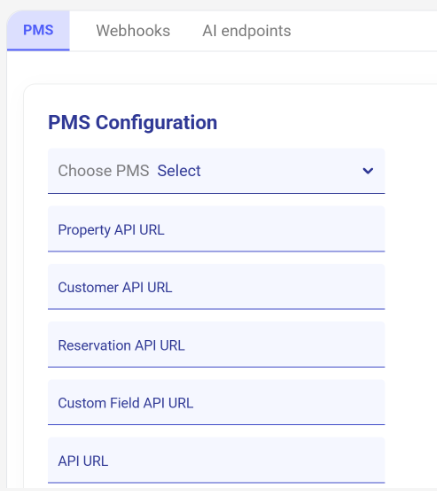
Under the PMS settings, open the Choose PMS dropdown and select Cloudbeds from the list.

After selecting Cloudbeds, the Connect your Cloudbeds account button will appear.
Click the button to start the connection process. You will be automatically redirected to the Cloudbeds website to authorize the connection.

On the Cloudbeds page, log in using your Cloudbeds username and password.

After logging in, Cloudbeds shows a page listing the permissions Dharma is requesting. Accept all of them. If any permission is left unchecked, the integration may not work correctly.
Scroll to the bottom of the permissions page and click Allow access.
You are sent back to the Dharma Operations Platform, where you will see the message Connected successfully.

Functionality
The integration synchronizes operational information in both directions, helping keep Cloudbeds PMS and Dharma OPS aligned. Here’s how information moves between the two platforms.
We pull in your units, reservations, and guest information. With this information available in Dharma OPS, your team has the context needed to manage housekeeping, work orders, and other daily operational activities.
As your team completes housekeeping tasks and work orders, we automatically push room status updates back to Cloudbeds PMS, so front desk and reservations always see accurate, real-time availability.
Manage the connection
If you need to disconnect the integration, you can do so directly from Dharma OPS.
Manage the connection
You can also disconnect the Dharma OPS application through Cloudbeds. If you disconnect the Dharma OPS application from the Cloudbeds backend, the connection is disconnected.
Cloudbeds’ official guideHow to disconnect an app from Cloudbeds PMSOpen guideIf you need help with account setup, connecting Cloudbeds to Dharma OPS, or managing your integration, our team is here to help.